Tips for Building a Multilingual Website with Wix Multilingual App

Today, there are many different no-code tools available, but one of the main reasons I use Wix among them is Wix Multilingual.
At LITTLE FUJI Design Studio, Aya, a Japanese designer based in New Zealand, offers multilingual website design in both Japanese and English. We frequently create multilingual websites using Wix.
In this article, I would like to share some important things to know when creating multilingual websites with the Wix Multilingual app.
What is Wix Multilingual?
Wix Multilingual is an extension app that can be installed from the Wix App Market to enable multilingual settings for your website.

There are many free and paid apps available in the App Market, and Wix Multilingual can be used for free.
Supported Languages in Wix Multilingual

According to the Wix Help Center:
Wix Multilingual supports over 180 languages per the ISO 639-1 standard.
As stated above, Wix supports a wide variety of languages, ranging from widely spoken languages to more niche ones.
In addition to Japanese and English, supported languages include Korean, Chinese (Traditional and Simplified), French, German, Spanish, and many others.
In most cases, Wix Multilingual is sufficient for creating multilingual websites without any major issues.
Reference : Wix Multilingual: Languages Available
How to Set Up and Manage Multilingual Content with Wix Multilingual
After installing the Wix Multilingual app from the Wix App Market, there are two main ways to manage multilingual settings on your website.
Method 1: Edit Translations Directly in the Editor
The first method is editing translations directly from the website editor.

A language switch menu appears in the top-left corner of the editor, allowing you to switch languages and directly enter translated content on the editor itself.
Since I often handle both website design and English / Japanese multilingual settings myself, I usually add translations directly while designing the website.
This method allows me to check the design layout at the same time, making it easier to adjust font sizes and layouts depending on the language.
Method 2: Manage Translations from the Wix Dashboard
The second method is managing translations from the Wix site dashboard.

By opening “Site Content” and selecting “Multilingual Overview” from the dashboard, you can see a list of your original language and added languages, then choose the language you want to edit.

The translation screen displays original and translated text in a spreadsheet-like layout.
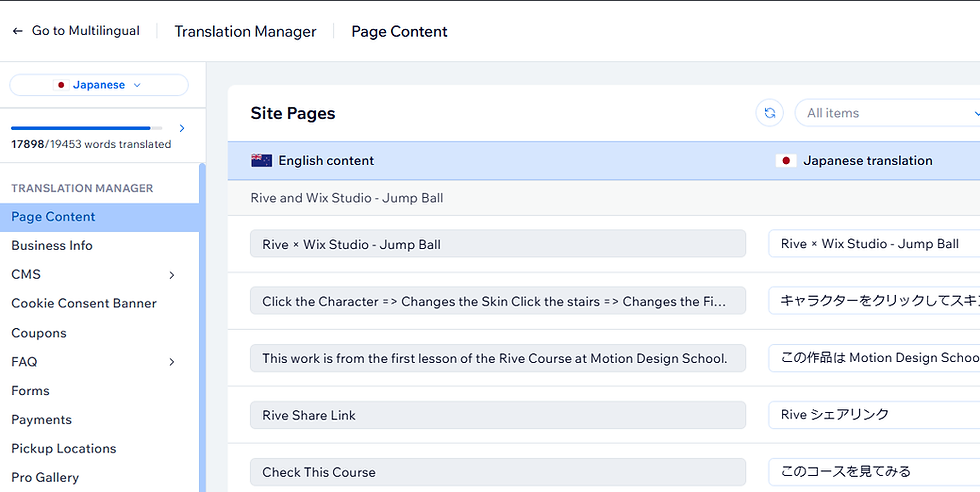
Translations are organized by page section, making this method especially useful for websites with a large amount of multilingual content or when translations are handled by a separate translator.
Elements that have not yet been translated are marked as “Untranslated,” while completed items are marked as “Translated,” making it easier to check for missing translations.
Machine translation
Wix Multilingual also includes up to 3,000 words of free machine translation.
These days, AI tools such as ChatGPT can also assist with translations, so although manual input takes some time, you can avoid additional Wix translation costs by translating content yourself or using AI tools.
At LITTLE FUJI Design Studio, all multilingual content on websites with English as the main language and Japanese as the secondary language is manually translated and entered by myself.
*For translations exceeding 3,000 words, additional translation credits must be purchased or translations must be entered manually.
Important Tips to Know About Wix Multilingual
Here are three important things I noticed while using Wix Multilingual to create multilingual websites.
Tips1:Fonts Cannot Be Switched Per Language
The first important point is that font settings cannot generally be changed separately for each language.
In Wix Multilingual, font types, font sizes, and layouts affect all languages.
Depending on the language used, layouts may break significantly, or unsupported fonts may fall back to the system font.
For example, let’s say you use Poppins and TBUD Maru Gothic fonts on your website.
In the English version, both fonts display correctly.
However, when switching to Japanese, the Japanese text displayed with Poppins changes to Noto Sans JP.

This happens because Poppins is a Latin alphabet font that supports English characters but not Japanese characters.
For this reason, it is important to choose fonts that support both your main language and additional languages when designing multilingual websites.
Fonts have a major impact on the overall impression of a website, so choosing fonts early in the design process is important for maintaining consistency and branding.
Japanese text also tends to require more characters.
Even if a website looks stylish in English with large typography, switching to Japanese may make the Japanese font appear oversized and visually awkward.
Personally, I think keeping headings in English only can sometimes be a good solution.
It would be great if Wix eventually added a feature allowing fonts to be managed separately for each language, as it would greatly expand design flexibility.
*It may be possible to achieve this using Velo custom code or direct CSS editing, but this article assumes using Wix Multilingual without backend customization.
Tips2:Not All Elements Support Multilingual Settings
The second important point is that not all elements can be translated using Wix Multilingual.
One issue I noticed was that CMS fields using the “Tag” field type could not be translated either from the editor or from the dashboard multilingual settings. They only displayed in the main language.

Additionally, when images were used as section backgrounds, image alt text could only be set in one language.

For example, after setting English alt text for a background image, I switched the editor to Japanese and entered Japanese alt text.
However, when switching back to the English editor view, the Japanese alt text that was entered last was displayed instead.

I checked this issue with Wix Customer Care, and they confirmed the following:
Currently, it is not possible to set different Alt Text for background images used in sections or strips depending on the site language. The team is considering improvements for this feature internally, however there is no estimated timeline for implementation at this stage.
Therefore, as of 2026, there does not appear to be a way to apply multilingual Alt Text settings to background images in Sections and Strips (Wix Editor).
Extra Note: Can Different Images Be Used for Each Language?
Yes, it is possible to use different images for different languages.
Normally, images added to a site are shared across all languages.
However, after switching to multilingual editing mode, you can select an image, open “Settings,” and choose “Replace” to assign different images for each language.
This allows you to display more appropriate visuals depending on the language and audience.

I mainly use this feature for blog pages.
In fact, this article itself should display different screenshots in the Japanese and English versions.
Tips3 : Alt Text Must Be Set for Each Language
The third important point is that image alt text needs to be configured separately for each language.
As mentioned earlier, section background images and Pro Gallery elements currently only support one alt text language.
However, most other elements allow separate alt text settings for each language.
For example, when adding a slideshow and setting images as slideshow items, alt text can be configured separately for both the main language (English) and secondary language (Japanese).

Page meta descriptions can also be configured separately for each language, so make sure not to forget this step.
How to Set Multilingual Alt Text for Images in Wix Pro Gallery
For images inside a Wix Pro Gallery, multilingual Alt Text can only be configured through the Translation Editor accessed from the site dashboard.
For slideshow images or standalone images, Alt Text can normally be updated directly from the editor by switching languages.
However, when I tried setting Alt Text for Pro Gallery images from the editor panel, the Alt Text was overwritten by the most recently edited language.
(This appears to be the same behaviour as section background images.)
Therefore, if you would like to apply multilingual Alt Text settings to images inside a Pro Gallery, you need to open:
Wix Site Dashboard > Multilingual Overview > Translation Editor
Then update the Alt Text from the “Wix Pro Gallery” section inside the Translation Editor.

Conclusion
These are some important things to know when creating multilingual websites using Wix Multilingual.
Although Wix Multilingual has a few quirks, I personally think Wix offers the best cost performance for creating multilingual websites with no-code tools.
My favorite features are the multilingual translation management list available from the dashboard and the ability to create blog posts separately for each language.
In fact, the ease of managing multilingual content is one of the main reasons I continue using Wix.
As globalization continues, I feel that more businesses want multilingual websites that they can easily manage themselves.
At LITTLE FUJI, Aya, a Japanese designer based in New Zealand, offers multilingual website design services in both English and Japanese.
If you would like to make your existing website available in English or Japanese, please feel free to contact us.
LITTLE FUJI Design Studio Contact👇