Can we still use Wix Old Forms? Differences from the New Form and Automation for Wix Editor

Have you heard that Wix recently released a new version of its forms?👀
I manage my own websites using both Wix Studio and the Wix Editor, and when the new form was announced, I migrated both sites from the old Wix forms to the new version.
Because of this, I did not experience any issues myself.
However, just recently, a client contacted me to say that the automatic notification emails from their old Wix form were not working properly.
As a result, LITTLE FUJI Design Studio took the opportunity to review the differences between the old Wix forms and the new forms once again.
In this article, I will share the key points discovered through this review, including important considerations and how to set up automations for old forms.
When Were Wix Old Forms Fully Migrated to Automations?
The new Wix Forms were originally announced around August 2025.
After that, the old forms continued to function without major issues for some time.
However, after contacting Wix Customer Care, I was informed that the old forms were fully migrated to the Automation system around February 16, 2026.
As part of this transition, from February 16th 2026 onward, Wix automatically creates and activates the relevant automations on the system side.
However, not all settings are automatically transferred.
As a result, from mid-February 2026, certain features that were previously configured directly within the old form settings, such as automatic email notifications, must now be manually recreated using Automations.
For example, settings that send a notification email to your own email address when a form submission is received.
If you have recently experienced issues such as:
“I know inquiries are coming in, but I’m not receiving notification emails.”
It is recommended that you check whether your Wix website is still using an old form.
Differences Between Wix Old Forms and New Forms
Let’s compare the specific differences between Wix old forms and new forms.
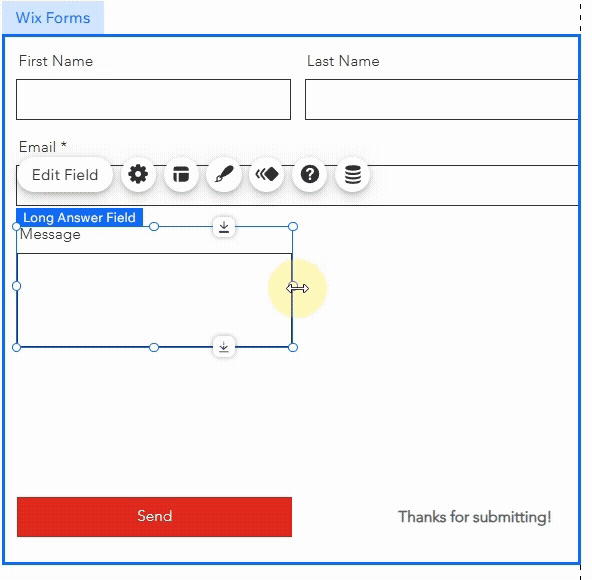
●Wix Old Forms
With old forms, buttons for form settings, layout, and design are displayed directly within the Wix Editor interface.

Form editing must also be done directly within the Wix Editor.
●Wix New Forms
In contrast, when selecting a new form, only the “Edit Form” and “Settings” buttons are displayed.

The form design can be edited either by double-clicking the form or by clicking the “Edit Form” button, which opens the dashboard interface.
On the new form dashboard, you can easily rearrange fields using drag-and-drop.
It is also easier to review each field element, and you can manage editing, previewing, settings, and viewing submissions all in one place.

Overall, the new form is significantly more user-friendly.
How to Add a Wix Form
Next, let’s look at how to add a Wix form.
●In Wix Studio
Since August 2025, it has no longer been possible to add old forms in the Wix Studio Editor.
By default, any form you add will be created as a new form.
Therefore, to add a form in Wix Studio, go to Add Elements > Contact & Forms, and the form will automatically be added as a new form.

●In the Wix Editor
In the Wix Editor as well, when you go to Add Elements > Forms, the contact & forms that appear are generally the new forms by default.

Since the use of the new form is now recommended, it is unlikely that you would intentionally add an old form going forward.
However, one important point to note is when you add a page using a full-page template.

For example, when adding a new page and selecting a “Contact” page directly from a template, I found that the form included in that template was still an old form.
While I have not checked every template, if you add a page using a full-page template, it is important to confirm whether the form has been added as an old form.
If it is an old form, delete it and then add a new contact form via Add Elements > Forms, as mentioned earlier.
How to Switch from an Old Form to a New Form?
As of February 2026, Wix does not provide a feature that allows you to convert an old Wix form into a new form.
You will need to manually delete the old form from your Wix site and recreate it using the new form.
How to Set Up Automatic Notifications for Old Wix Forms?
●Previous Notification Settings Method
First, let’s review how notification settings for old forms were previously configured.
When setting up notifications for old forms—such as receiving an email notification or displaying submissions in the Wix Inbox when a form was submitted—these settings were managed through the notification settings screen.
However, this old settings screen is no longer accessible.
After confirming with Customer Support, I was informed that Wix can no longer access these old settings either, and support for old forms is scheduled to be discontinued.
●Automatic Notification Settings for Old Wix Forms (From February 2026 Onward)
From February 2026 onward, all notification settings for old Wix forms must be configured using Automations.
The term “Automation” may sound a bit technical, but it simply means setting up an automated process.
The setup itself is not complicated, so I highly recommend taking this opportunity to configure your notifications using Automations.

Automation to Show Inquiries Submitted via Old Wix Forms in the Wix Inbox
One of the settings I wanted to configure was to ensure that when an inquiry is submitted through an old form in the Wix Editor, it also appears in the Inbox within the Wix dashboard.
This setting is not included in the automatic automations created by Wix, so it must be set up manually.
From here, I will explain in four steps how to create an automation that displays submissions from old Wix Editor forms in the dashboard Inbox.
1.Create a New Automation
First, open the Automation settings page from your dashboard and click the “Create Automation” button in the top right corner.

You will see several suggested automation templates. From there, select “Start from Scratch” in the bottom left.

2.Set the Trigger
Once the automation editor screen opens, start by creating a trigger.
In this case, select “Form submitted” under Old Wix Forms.

One important point to note is that old forms are labeled as Old Wix Forms (shown in burgundy), while new forms appear as Wix Forms (shown in blue).
I accidentally selected the blue Wix Forms option at first, which meant the automation was not triggered by submissions from the old form.
(Wix Forms appears first in the list, so it would be clearer if it were labeled “New Forms.”(´;ω;`))
When you select Old Wix Forms, you can then choose which specific old form the automation should apply to.
By default, it is set to “Any,” but if you would like the automation to apply only to a specific old form, select the relevant form and click “Apply.”

Once the trigger has been set, click the “+” button below to add a step or action.

3. Add the Action
Next, select the action "Show in Inbox" to display the submission in the Inbox.

You can also set the form name here, so choose a name that is easy for you to recognize.
I used a combination of my site name and “Old Contact Form.”
I did not make any changes to the other fields or the contact ID.
4.Activate the Automation
Once you have completed the setup, click “Apply” and confirm that the action has been added.
Finally, click the “Activate” button in the top right corner to complete the setup.
You can confirm that the automation is active by checking that its status is set to “Active.”

You can confirm that the automation is active by checking that its status is set to “Active.”

Let’s Update Old Wix Forms to the New Form
That concludes the automation setup method for displaying old Wix form notifications in the Inbox.
As for myself, when the new form was announced in August 2025, I replaced the old forms with the new ones on both Wix Editor and Wix Studio as part of testing, so I did not experience any issues.
However, if you created your Wix website several years ago and have not updated it much since, or if you have recently stopped receiving notifications from your contact form (especially in the Wix Editor), I recommend checking whether your site is still using an old form and whether your automations are properly configured.
At LITTLE FUJI, I provide not only Wix website design services but also spot support for the Wix Editor.
If you are experiencing issues such as:
You built your site yourself using Wix, but the design layout is broken
Automatic notification emails are not being received, or you want to rebuild your old form using the new form
You would like to manage your portfolio or content more easily but are unsure how to set up CMS
Please feel free to get in touch!